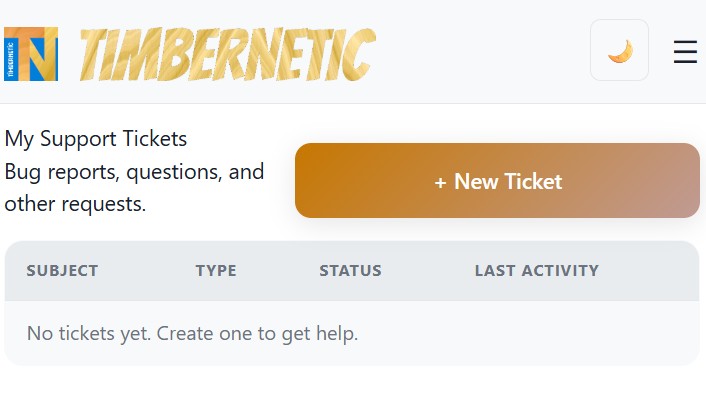
Open a ticket, track its status, and reply to support staff — all from your dashboard. Use this when something isn't working, a feature is missing, or you have a question about your account or billing.
Where to find Support
Open /dashboard/support from your account menu, or click the Support link in the dashboard sidebar. You'll see a list of your tickets, sorted by most recent activity.
Each row shows the ticket subject, current status, type, and when it was last updated.
Opening a new ticket
- Click New ticket.
- Enter a clear, specific subject — "Floor resize crashes when…" beats "Bug".
- Pick a type.
- Describe the problem in the body. Include what you expected, what happened, and the steps to reproduce. If it's a builder issue, name the project and the component if you can.
- Optional: drop screenshots, exported BOM CSVs, or other files into the Attachments area.
- Submit. The ticket lands in the support queue and you're taken to its thread.
Ticket types
| Type | Use it for |
|---|---|
| Bug | Something is broken or doesn't behave as documented. |
| Feature Request | You'd like Timbernetic to do something it currently doesn't. |
| Question | How-to questions about the application that aren't covered by the guides. |
| Account | Sign-in problems, profile, package, project slot issues. |
| Billing | Invoices, upgrades, downgrades, payment problems. |
| Other | Anything that doesn't fit the categories above. |
Ticket statuses
| Status | What it means |
|---|---|
| Open | Submitted; waiting for a support agent to triage. |
| In Progress | An agent is actively working on it. |
| Waiting on User | Support has asked you for more information. Reply on the ticket to move it forward. |
| Resolved | Support believes the issue is fixed or the question is answered. You can reply to reopen if it isn't. |
| Closed | Final state. The ticket is archived; open a new one if you need further help on the topic. |
Replying & following the thread
- Click any ticket row in the list to open its thread.
- Replies from you and from support are shown in chronological order, with timestamps and the author's name.
- Type your reply in the Reply box at the bottom of the thread; attach files if needed; press Send.
- If the ticket was Waiting on User, your reply moves it back to In Progress.
Writing a useful ticket
- Reproduce steps. "Open project X → click Resize on the wall → drag the top face → app freezes" is far more actionable than "Resize is broken".
- Project name & component. If your issue happens in the builder, tell us which project and which component the problem is on.
- Browser & OS. Mention which browser (Chrome, Firefox, Safari, Edge) and which operating system. Bugs are often browser-specific.
- Screenshot or short screen recording. A picture is worth a paragraph. Attach to the ticket directly.
- What you tried. If you've already restarted the browser, switched account, or tried a different project, mention it — it saves a round-trip.
- Sensitive data. Don't paste passwords, payment-card numbers, or recovery codes into a ticket. Support will never ask for them.
Response times
Tickets are triaged by priority and type. Bugs that block work and Account / Billing issues typically get a first response sooner than feature requests or general questions. You can see the latest activity on each ticket in the list view.
If a ticket sits in Waiting on User for too long without a reply, it may be auto-closed. Reply at any time to reopen it.
Comments 0